Power BI Indian Fiscal Calendar DAX
Power BI Indian Fiscal Calendar DAX is a table DAX catering to Indian Fiscal Year or contries where Calendar and Fiscal Year are different.
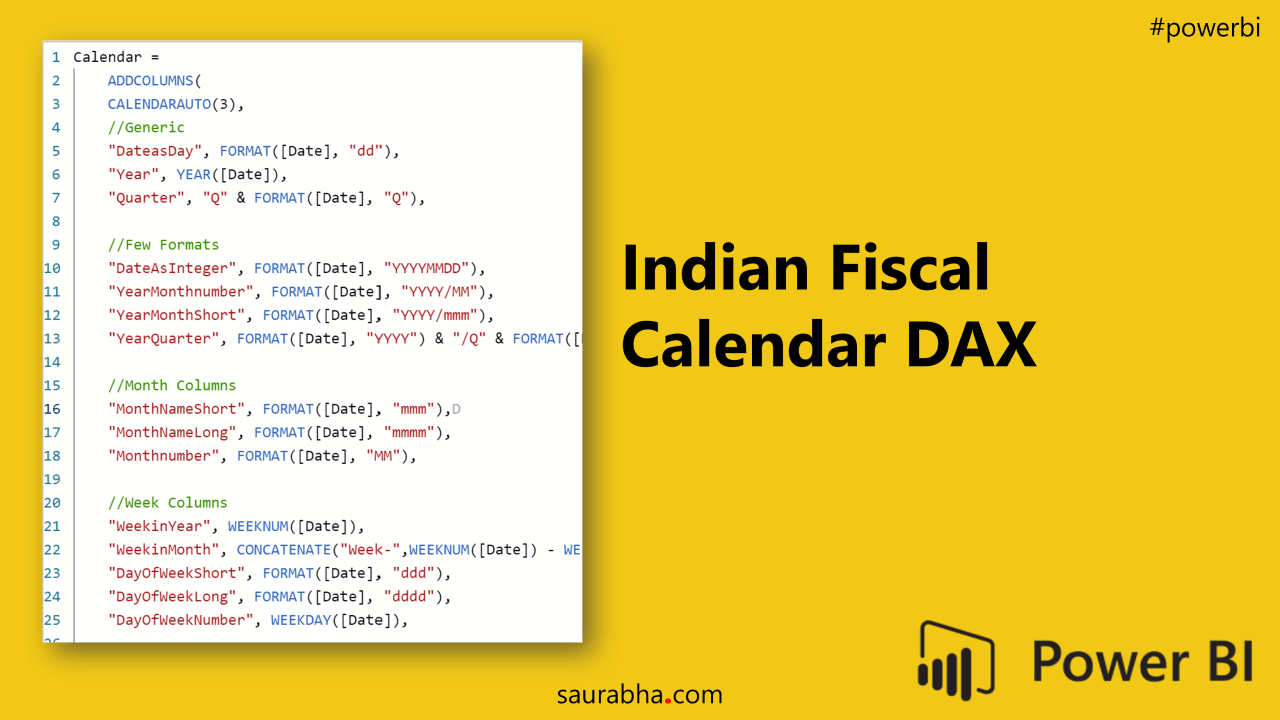
Power BI Indian Fiscal Calendar DAX
Introduction
While starting any Power BI project, the first thing I start with and I am sure you do too (if you do not then better start doing it 😋) is to setup a Calendar table. We all know how important a Calendar table is in any data model. You definitely do not want to screw it up with a lame Calendar using the DAX CALENDAR() function and then add calculated columns as you need them (I know you are smiling at this as you read because deep down you have done that if not many but a couple of times 😝😝).
Understanding Fiscal Year
This post is to save you that embarrassment and give you a beautiful Calendar and especially suiting our Indian needs or for that matter any country whose Fiscal Year does not match the Calendar year. What it essentially means is the first month of our Gregorian Calendar (January) is not the first month of your Fiscal Year. When such a scenario happens, most of your visualizations containing months will have to be ordered starting from the first month of your Fiscal year as opposed to January. The below table explains the Indian Fiscal Calendar concept much easier.
The main part –> Power BI Indian Fiscal Calendar DAX
Calendar =
    ADDCOLUMNS(
    CALENDARAUTO(3),

    //Generic
    "DateasDay", FORMAT([Date], "dd"),
    "Year", YEAR([Date]),
    "Quarter", "Q" & FORMAT([Date], "Q"),

    //Few Formats
    "DateAsInteger", FORMAT([Date], "YYYYMMDD"),
    "YearMonthnumber", FORMAT([Date], "YYYY/MM"),
    "YearMonthShort", FORMAT([Date], "YYYY/mmm"),
    "YearQuarter", FORMAT([Date], "YYYY") & "/Q" & FORMAT([Date], "Q"),

    //Month Columns
    "MonthNameShort", FORMAT([Date], "mmm"),
    "MonthNameLong", FORMAT([Date], "mmmm"),
    "Monthnumber", FORMAT([Date], "MM"),

    //Week Columns
    "WeekinYear", WEEKNUM([Date]),
    "WeekinMonth", CONCATENATE("Week-",WEEKNUM([Date]) - WEEKNUM(DATE(YEAR([Date]),MONTH([Date]), 1)) + 1),
    "DayOfWeekShort", FORMAT([Date], "ddd"),
    "DayOfWeekLong", FORMAT([Date], "dddd"),
    "DayOfWeekNumber", WEEKDAY([Date]),

    //Specific to India and countries whose Fiscal Year does not follow Calendar year and is from April to March
    //You can tweak the values accordingly for your Countries Calendar
    "FiscalYear", IF(
            MONTH([Date]) <=3,
            concatenate(VALUE(FORMAT([Date],"YYYY")-1),"-") & right(VALUE(FORMAT([Date],"YYYY")),2),
            concatenate(VALUE(FORMAT([Date],"YYYY")),"-") & right(VALUE(FORMAT([Date],"YYYY")+1),2)
    ),
    "FiscalQuarter", "Q" & ROUNDUP(IF(MONTH([Date]) <= 3, MONTH([Date]) + 9, MONTH([Date]) - 3)/3,0),
    "FiscalMonthNumber", FORMAT(IF(MONTH([Date]) <= 3, MONTH([Date]) + 9, MONTH([Date]) - 3), "00")

    //Credits: https://saurabha.com
)
Once you get this table there is one thing left to do from a Fiscal Year Perspective. That is to change the Sort Order of the Month and align to the Fiscal Month Progression. Select the MonthNameShort or MonthNameLong columns and in the Sort Order menu, select the column FiscalMonthNumber
Voila, you are done!!! 😎😎😎
If you are new to Power BI or want to enhance your skills or get a certificate, check out my Blog post EDX DAT207x Power BI Course Review 2020 with Answers where I review one of the best Power BI free courses by Microsoft.
Related Articles
#PowerJanta – Power BI May 2023 Feature Summary
#PowerJanta - Important and most relevant features from Power BI August 2021 Feature Summary as per Saurabha Joglekar, BI Consultant.
#PowerJanta – Power BI October 2021 Feature Summary
#PowerJanta - Important and most relevant features from Power BI October 2021 Feature Summary as per Saurabha Joglekar, BI Consultant.
#PowerJanta – Power BI August 2021 Feature Summary
#PowerJanta - Important and most relevant features from Power BI August 2021 Feature Summary as per Saurabha Joglekar, BI Consultant.
Enjoyed this article?
Get in touch, or explore more of my writing on Power BI, AI & data and automation.